Showing posts with label Practice - Lab - Learning CCNA. Show all posts

Wednesday, October 7, 2009

Lab 1 - CCNA Implementation SIM

This topology contains 3 routers and 1 switch. Complete the topology.
Drag the appropriate device icons to the labeled Device
Drag the appropriate connections to the locations labeled Connections.
Drag the appropriate IP addresses to the locations labeled IP address

(Hint: use the given host addresses and Main router information)
To remove a device or connection, drag it away from the topology.
Use information gathered from the Main router to complete the configuration of any additional routers. No passwords are required to access the Main router. The config terminal command has been disabled for the HQ router. The router does not require any configuration.

Configure each additional router with the following:
Configure the interfaces with the correct IP address and enable the interfaces.
Set the password to allow console access to consolepw
Set the password to allow telnet access to telnetpw
Set the password to allow privilege mode access to privpw
Note: Because routes are not being added to the configurations, you will not be able to ping through the internetwork.
All devices have cable autosensing capabilities disabled.
All hosts are PC’s


Answer and explanation:

Specify appropriate devices and drag them on the "Device" boxes
For the device at the bottom-right box, we notice that it has 2 interfaces Fa0/2 and Fa0/4 -> it is a switch
The question stated that this topology contains 3 routers and 1 switch -> two other devices are routers
Place them on appropriate locations as following:


(Host D and host E will be automatically added after placing two routers. Click on them to access neighboring routers)
Specify appropriate connections between these devices:
+ The router on the left is connected with the Main router through FastEthernet interfaces: use a crossover cable
+ The router on the right is connected with the Main router through Serial interfaces: use a serial cable
+ The router on the right and the Switch: use a straight-through cable
+ The router on the left and the computer: use a crossover cable


Assign appropriate IP addresses for interfaces:
From Main router, use show running-config command:


(Notice that you may see different IP addresses in the real CCNA exam, the ones shown above are just used for demonstration)
From the output we learned that the ip address of Fa0/0 interface of the Main router is 192.168.152.178/28. This address belongs to a subnetwork which has:
Increment: 16 (/28 = 255.255.255.240 or 1111 1111.1111 1111.1111 1111.1111 0000)
Network address: 192.168.152.176 (because 176 = 16 * 11 and 176 < 178)
Broadcast address: 192.168.152.191 (because 191 = 176 + 16 - 1)
And we can pick up an ip address from the list that belongs to this subnetwork: 192.168.152.190 and assign it to the Fa0/0 interface the router on the left
Use the same method for interface Serial0/0 with an ip address of 192.168.152.172
Increment: 16
Network address: 192.168.152.160 (because 160 = 16 * 10 and 160 < 172)
Broadcast address: 192.168.152.175 (because 176 = 160 + 16 - 1)
-> and we choose 192.168.152.174 for Serial0/0 interface of the router on the right
Interface Fa0/1 of the router on the left
IP (of the computer on the left) : 192.168.152.129/28
Increment: 16
Network address: 192.168.152.128 (because 128 = 16 * 8 and 128 < 129)
Broadcast address: 192.168.152.143 (because 143 = 128 + 16 - 1)
-> we choose 192.168.152.142 from the list
Interface Fa0/0 of the router on the right
IP (of the computer on the left) : 192.168.152.225/28
Increment: 16
Network address: 192.168.152.224 (because 224 = 16 * 14 and 224 < 225)
Broadcast address: 192.168.152.239 (because 239 = 224 + 16 - 1)
-> we choose 192.168.152.238 from the list
Let's have a look at the picture below to summarize


Configure two routers on the left and right with these commands:
Router1 = router on the left
Assign appropriate IP addresses to Fa0/0 & Fa0/1 interfaces:
Router1>enable
Router1#configure terminal
Router1(config)#interface fa0/0
Router1(config-if)#ip address 192.168.152.190 255.255.255.240
Router1(config-if)#no shutdown
Router1(config)#interface fa0/1
Router1(config-if)#ip address 192.168.152.142 255.255.255.240
Router1(config-if)#no shutdown
Set passwords (configure on two routers)
+ Console password:
Router1(config-if)#exit
Router1(config)#line console 0
Router1(config-line)#password consolepw
Router1(config-line)#login
Router1(config-line)#exit
+ Telnet password:
Router1(config)#line vty 0 4
Router1(config-line)#password telnetpw
Router1(config-line)#login
Router1(config-line)#exit
+ Privilege mode password:
Router1(config)#enable password privpw
Save the configuration:
Router1(config)#exit
Router1#copy running-config startup-config
Configure IP addresses of Router2 (router on the right)
Router2>enable
Router2#configure terminal
Router2(config)#interface fa0/0
Router2(config-if)#ip address 192.168.152.238 255.255.255.240
Router2(config-if)#no shutdown

Router2(config-if)#interface serial0/0
Router2(config-if)#ip address 192.168.152.174 255.255.255.240
Router2(config-if)#no shutdown
and set console, telnet and privilege mode passwords for Router2 as we did for Router1, remember to save the configuration when you finished

Friday, September 11, 2009

ICND 2 - Nat Sim Question

Here you will find answers to SIMULATION Questions 
Question:
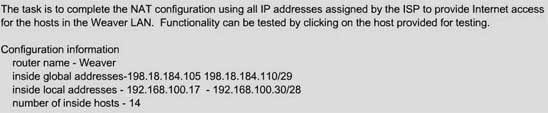
A network associate is configuring a router for the weaver company to provide internet access. The ISP has provided the company six public IP addresses of 198.18.184.105 198.18.184.110. The company has 14 hosts that need to access the internet simultaneously. The hosts in the company LAN have been assigned private space addresses in the range of 192.168.100.17 – 192.168.100.30.
The following have already been configured on the router:
- The basic router configuration
- The appropriate interfaces have been configured for NAT inside and NAT outside
- The appropriate static routes have also been configured (since the company will be a stub network, no routing protocol will be required.)
- All passwords have been temporarily set to "cisco"
ccna_nat_sim_lab1
Solution:

The company has 14 hosts that need to access the internet simultaneously but we just have 6 public IP addresses from 198.18.184.105 to 198.18.184.110/29. Therefore we have to use NAT overload (or PAT)
Double click on the Weaver router to open it
Router>enable
Router#configure terminal

First you should change the router's name to Weaver
Router(config)#hostname Weaver
Create a NAT pool of global addresses to be allocated with their netmask.

Weaver(config)#ip nat pool mypool 198.18.184.105 198.18.184.110 netmask 255.255.255.248
Create a standard access control list that permits the addresses that are to be translated
Weaver(config)#access-list 1 permit 192.168.100.16 0.0.0.15

Establish dynamic source translation, specifying the access list that was defined in the prior step
Weaver(config)#ip nat inside source list 1 pool mypool overload
This command translates all source addresses that pass access list 1, which means a source address from 192.168.100.17 to 192.168.100.30, into an address from the pool named mypool (the pool contains addresses from 198.18.184.105 to 198.18.184.110)
Overload keyword allows to map multiple IP addresses to a single registered IP address (many-to-one) by using different ports

The question said that appropriate interfaces have been configured for NAT inside and NAT outside statements.
This is how to configure the NAT inside and NAT outside, just for your understanding:
Weaver(config)#interface fa0/0
Weaver(config-if)#ip nat inside
Weaver(config-if)#exit
Weaver(config)#interface s0/0
Weaver(config-if)#ip nat outside
Weaver(config-if)#end
Finally, we should save all your work with the following command:
Weaver#copy running-config startup-config

Check your configuration by going to "Host for testing" and type:
C:\>ping 192.0.2.114
The ping should work well and you will be replied from 192.0.2.114

Monday, September 7, 2009

How To Become A True CCNA And To Get A CCNA job

The CCNA is an exciting beginning to your Cisco career, but just having the certification simply isn't enough. A recruiter or interviewer isn't going to be impressed just with the cert; you've got to have some real-world knowledge to back it up.
I've been down that road myself, and sat on both sides of the CCNA job interview table. With that in mind, I'd like to offer to you some tips on becoming a truly valuable and employable CCNA.
Get some hands-on experience. I know the trap well; you can't get experience until you get a CCNA, and you can't get a CCNA without real experience. Well, actually, you can, but do you want to? Working on simulators is fine to a certain extent, but don't make the classic mistake of depending on them. I've seen plenty of CCNAs who were put in front of a set of routers and really didn't know what to do or how to put together a simple configuration, and had NO idea how to begin troubleshooting.
There are CCNA classes that offer you the chance to work with industry experts on real Cisco equipment. Beyond that, you can put together your own CCNA rack for less than $1000 by buying used routers. Some people think that's a lot of money, but this is the foundation of your career. Treat it that way. The work you do now is the most important work you'll ever do. Do it on real Cisco equipment. The skills I learned as a CCNA helped me all the way up to the CCIE.
Besides, after you get your CCNA (and after that, hopefully you'll choose to pursue the CCNP), you can always get some of your money back by selling the equipment. The hands-on experience you gain this way is invaluable.
Know binary math. Do NOT go the easy route of memorizing a subnet mask chart for the CCNA exam. I know some people brag about being able to pass the CCNA exam without really understanding binary math. I've seen those people on the other side of the interview table, and they're not laughing when I ask them to do a subnetting question. They're not laughing when they can't explain or create a VLSM scheme. That chart does nothing to help you understand what's going on.
If you can add and know the difference between a one and a zero, you can do binary math. Don't let the name intimidate you. Become a REAL CCNA -- learn binary math !
Run "show" and "debug" commands. No commands help you truly understand how things work in a Cisco network than show and debug commands. As you progress through the Cisco certification ranks, you'll be glad you started using these at the CCNA level.
Do you need to know these commands for the exam? Probably not. Do you need them to be successul in the real world? Absolutely.
The Cisco certification track has been great to me, and it can boost your career as well, whether you stop at the CCNA, CCNP, or go all the way to the CCIE. It's the skills you develop today that will truly make you a networking engineer. Don't take shortcuts or get the attitude of "just passing the exam".
It's what you achieve after the exam that counts, and it's the work you put in before passing the exam that makes those achievements possible.

Monday, August 31, 2009

Setting Up Access List On Cisco Router

access-list
In this Example will open ports for need to use out of using will close it alls.
This case no have inside (internal) server.
Step for setting Up :
Router#conf t
Router(config)#access-list 100 permit tcp any any range 20 23
Router(config)#access-list 100 permit tcp any any eq 25
Router(config)#access-list 100 permit tcp any any eq 53
Router(config)#access-list 100 permit tcp any any eq 80
Router(config)#access-list 100 permit tcp any any eq 110
Router(config)#access-list 100 permit tcp any any eq 143
Router(config)#access-list 100 permit tcp any any eq 443
Router(config)#access-list 100 permit udp any any eq 53
Router(config)#access-list 100 permit udp any any eq 161
Router(config)#access-list 100 permit tcp any any eq 3306
Router(config)#access-list 100 permit icmp any any echo
Router(config)#access-list 100 deny ip any any
Router(config)#int f0
Router(config-if)#ip access-group 100 in

This case : have inside (internal server)
Server IP for this case as below :
Web Server : 202.129.49.194
FTP Server : 202.129.49.195
DNS Server : 202.129.49.196
Mail Server : 202.129.49.197
Step for Setting Up :
Router#conf t
Router(config)#access-list 100 permit tcp any any range 20 23
Router(config)#access-list 100 permit tcp any any eq 25
Router(config)#access-list 100 permit tcp any any eq 53
Router(config)#access-list 100 permit tcp any any eq 80
Router(config)#access-list 100 permit tcp any any eq 110
Router(config)#access-list 100 permit tcp any any eq 143
Router(config)#access-list 100 permit tcp any any eq 443
Router(config)#access-list 100 permit udp any any eq 53
Router(config)#access-list 100 permit udp any any eq 161
Router(config)#access-list 100 permit tcp any any eq 3306
Router(config)#access-list 100 permit icmp any any echo
Router(config)#access-list 100 permit tcp host 202.129.49.194 eq 80 any
Router(config)#access-list 100 permit tcp host 202.129.49.195 any < For FTP Server >
Router(config)#access-list 100 permit tcp host 202.129.49.196 eq 53 any < For DNS Server : tcp>
Router(config)#access-list 100 permit udp host 202.129.49.196 eq 53 any < For DNS Server : udp >
Router(config)#access-list 100 permit tcp host 202.129.49.197 eq 25 any < For SMTP>
Router(config)#access-list 100 permit tcp host 202.129.49.197 eq 110 any < For pop3>
Router(config)#access-list 100 permit tcp host 202.129.49.197 eq 143 any < For imap>
Router(config)#access-list 100 deny ip any any
Router(config)#int f0
Router(config-if)#ip access-group 100 in
Hope this topic will help you fixed out about setting up access list on cisco router

Wednesday, August 26, 2009

Cisco 640-802 CCNA

Testkingworld.com 640-802 Practice Questions are designed with questions, coupled with precise, logical and verified answer. testkingworld.com's 640-802 practice exam provides you with an examination experience like no other. To take a more authentic exam, you would have to take the exam itself, in an exam center!

Furthermore our Cisco 640-802 braindumps exam is always updated to provide you the most actual information available and this is done with the help of our testking professionals team of certification experts, technical staff, and comprehensive language masters who are always in-touch with the changes in the 640-802 exam. So the true way for passing the 640-802 exam is to get in-touch with the testking to obtain the certification exam questions that will lead to your certification success. Easiest way to get these certifications is to log on to the 640-802 testking and download the 640-802 test questions to do Cisco 640-802 practice exam to obtain your free 640-802 exam certification.

At testking we are striving hard to provide you the complete balanced formulation to pass 640-802 exam successfuly. We aim that you get the 640-802 exam full information that is actually required to pass this 640-802 exam. So our TestKing Cisco Certified Network Associate exam package includes practice exam dumps which are prepared by our test king 640-802 professionals. Our Cisco 640-802 test questions are quality controlled and most updated edition and the most unique of all is the 640-802 practice test questions which provide you with the online examination experience. So it is clear that with the largest resource of certification Testking materials it's easy to achieve a brilliant career in information technology field.

640-802 CCNA Exam Link : http://www.testkingworld.com/640-802.asp
640-802 CCNA Demo Link : http://www.testkingworld.com/samples/640-802.zip

It's obvious that it's easy to speak in the air, however one can hardly prove it with facts. We here at Cisco 640-802 testking have a huge experience of certification exams and 640-802 braindumps which we've been providing from the last decade and the number of students which have been benefited from these brain dumps and study notes are self speaking themselves. So you can get the exams from various resources but the logical and the precise study to your practice exam questions is only here at Testking. At testking, 640-802 braindumps page all the necessary 640-802 exam guide can be found. And it not only includes free 640-802 but it also contains Cisco 640-802 QA and 640-802 practice exams.

Our Exam 640-802 Preparation Material provides you everything you will need to take your 640-802 Exam. The 640-802 Exam details are researched and produced by Professional Certification Experts who are constantly using industry experience to produce precise, logical and verified answers to the questions.So our 640-802 exam gives you a deep insight of the questions and answers that actually will guide you through your certification and this is the aim of test king to provide you with the 640-802 test questions and TestKing Cisco Certified Network Associate study notes that will modify you as Certification administrator. This 640-802 test king brain dump includes test questions which will not only enhance your abilities to cope with the problems but you will also be able to manage online real time problems. The only way to achieve 640-802 exam guide is to get 640-802 braindumps only at Testking 640-802.


Sunday, August 16, 2009

Config RIPV2-EIGRP-OSPF

Click on image to view full image


Hostname : localhost or 127.0.0.1
Port R1 : 1
Port R2 : 2
Port R3 : 3
Port R4 : 4
Port R5 : 5
Port R6 : 6
Port R7 : 7
Port Sw1 : 8
Port Sw2 : 9
Config Router

Config R1


Current configuration : 1155 bytes
!
version 12.4
service timestamps debug datetime msec
service timestamps log datetime msec
no service password-encryption
!
hostname R1
!
boot-start-marker
boot-end-marker
!
!
no aaa new-model
memory-size iomem 5
!
!
ip cef
!
!
no ip domain lookup
!
!
!
!
interface Loopback0
ip address 144.44.1.1 255.255.255.0
!
interface Loopback1
ip address 144.44.3.1 255.255.255.0
!
interface Loopback2
ip address 144.44.2.1 255.255.255.0
!
interface FastEthernet1/0
no ip address
shutdown
duplex auto
speed auto
!
interface Serial2/0
ip address 144.44.4.1 255.255.255.0
serial restart-delay 0
!
interface Serial2/1
no ip address
shutdown
serial restart-delay 0
!
interface Serial2/2
no ip address
shutdown
serial restart-delay 0
!
interface Serial2/3
no ip address
shutdown
serial restart-delay 0
!
router eigrp 44
redistribute static metric 100000 1 255 1 1500
network 144.44.1.0 0.0.0.255
network 144.44.2.0 0.0.0.255
network 144.44.3.0 0.0.0.255
network 144.44.4.0 0.0.0.255
no auto-summary
!
ip http server
ip route 172.0.0.0 255.0.0.0 Loopback0
!
!
!
!
!
control-plane
!
!
line con 0
logging synchronous
line aux 0
line vty 0 4
!
end

Config R2


Current configuration : 1099 bytes
!
version 12.4
service timestamps debug datetime msec
service timestamps log datetime msec
no service password-encryption
!
hostname R2
!
boot-start-marker
boot-end-marker
!
!
no aaa new-model
memory-size iomem 5
!
!
ip cef
!
!
no ip domain lookup
!
!
!
!
interface Loopback0
ip address 144.44.5.2 255.255.255.0
!
interface Loopback1
ip address 133.33.6.2 255.255.255.0
!
interface FastEthernet1/0
no ip address
shutdown
duplex auto
speed auto
!
interface Serial2/0
ip address 144.44.4.2 255.255.255.0
serial restart-delay 0
!
interface Serial2/1
ip address 133.33.7.2 255.255.255.0
serial restart-delay 0
!
interface Serial2/2
no ip address
shutdown
serial restart-delay 0
!
interface Serial2/3
no ip address
shutdown
serial restart-delay 0
!
router eigrp 44
redistribute rip metric 100000 1 255 1 1500
network 144.44.4.0 0.0.0.255
network 144.44.5.0 0.0.0.255
no auto-summary
!
router rip
version 2
redistribute eigrp 44 metric 7
network 133.33.0.0
no auto-summary
!
ip http server
!
!
!
!
!
control-plane
!
!
line con 0
logging synchronous
line aux 0
line vty 0 4
!
end

Config R3


Current configuration : 1060 bytes
!
version 12.4
service timestamps debug datetime msec
service timestamps log datetime msec
no service password-encryption
!
hostname R3
!
boot-start-marker
boot-end-marker
!
!
no aaa new-model
memory-size iomem 5
!
!
ip cef
!
!
no ip domain lookup
!
!
!
!
interface FastEthernet1/0
ip address 122.22.17.3 255.255.255.0
duplex auto
speed auto
!
interface Serial2/0
ip address 133.33.7.3 255.255.255.0
serial restart-delay 0
!
interface Serial2/1
ip address 133.33.10.3 255.255.255.0
serial restart-delay 0
!
interface Serial2/2
no ip address
shutdown
serial restart-delay 0
!
interface Serial2/3
no ip address
shutdown
serial restart-delay 0
!
interface FastEthernet3/0
ip address 133.33.8.3 255.255.255.0
duplex auto
speed auto
!
router ospf 10
log-adjacency-changes
redistribute rip metric 1000 subnets
network 122.22.17.0 0.0.0.255 area 0
!
router rip
version 2
redistribute ospf 10 metric 7
network 133.33.0.0
no auto-summary
!
ip http server
!
!
!
!
!
control-plane
!
!
line con 0
logging synchronous
line aux 0
line vty 0 4
!
end

Config R4


Current configuration : 1105 bytes
!
version 12.4
service timestamps debug datetime msec
service timestamps log datetime msec
no service password-encryption
!
hostname R4
!
boot-start-marker
boot-end-marker
!
!
no aaa new-model
memory-size iomem 5
!
!
ip cef
!
!
no ip domain lookup
!
!
!
!
interface Loopback0
ip address 155.55.12.4 255.255.255.0
!
interface Loopback1
ip address 133.33.11.4 255.255.255.0
!
interface FastEthernet1/0
no ip address
shutdown
duplex auto
speed auto
!
interface Serial2/0
ip address 133.33.10.4 255.255.255.0
serial restart-delay 0
!
interface Serial2/1
ip address 155.55.13.4 255.255.255.0
serial restart-delay 0
!
interface Serial2/2
no ip address
shutdown
serial restart-delay 0
!
interface Serial2/3
no ip address
shutdown
serial restart-delay 0
!
router eigrp 55
redistribute rip metric 100000 1 255 1 2500
network 155.55.12.0 0.0.0.255
network 155.55.13.0 0.0.0.255
no auto-summary
!
router rip
version 2
redistribute eigrp 55 metric 7
network 133.33.0.0
no auto-summary
!
ip http server
!
!
!
!
!
control-plane
!
!
line con 0
logging synchronous
line aux 0
line vty 0 4
!
end

Config R5


Current configuration : 1163 bytes
!
version 12.4
service timestamps debug datetime msec
service timestamps log datetime msec
no service password-encryption
!
hostname R5
!
boot-start-marker
boot-end-marker
!
!
no aaa new-model
memory-size iomem 5
!
!
ip cef
!
!
no ip domain lookup
!
!
!
!
interface Loopback0
ip address 155.55.16.5 255.255.255.0
!
interface Loopback1
ip address 155.55.15.5 255.255.255.0
!
interface Loopback2
ip address 155.55.14.5 255.255.255.0
!
interface FastEthernet1/0
no ip address
shutdown
duplex auto
speed auto
!
interface Serial2/0
ip address 155.55.13.5 255.255.255.0
serial restart-delay 0
!
interface Serial2/1
no ip address
shutdown
serial restart-delay 0
!
interface Serial2/2
no ip address
shutdown
serial restart-delay 0
!
interface Serial2/3
no ip address
shutdown
serial restart-delay 0
!
router eigrp 55
redistribute static metric 100000 1 255 1 1500
network 155.55.13.0 0.0.0.255
network 155.55.14.0 0.0.0.255
network 155.55.15.0 0.0.0.255
network 155.55.16.0 0.0.0.255
no auto-summary
!
ip http server
ip route 174.0.0.0 255.0.0.0 Loopback0
!
!
!
!
!
control-plane
!
!
line con 0
logging synchronous
line aux 0
line vty 0 4
!
end


Config R6


Current configuration : 932 bytes
!
version 12.4
service timestamps debug datetime msec
service timestamps log datetime msec
no service password-encryption
!
hostname R6
!
boot-start-marker
boot-end-marker
!
!
no aaa new-model
memory-size iomem 5
!
!
ip cef
!
!
no ip domain lookup
!
!
!
!
interface Loopback0
ip address 133.33.9.6 255.255.255.0
!
interface FastEthernet1/0
ip address 133.33.8.6 255.255.255.0
duplex auto
speed auto
!
interface Serial2/0
no ip address
shutdown
serial restart-delay 0
!
interface Serial2/1
no ip address
shutdown
serial restart-delay 0
!
interface Serial2/2
no ip address
shutdown
serial restart-delay 0
!
interface Serial2/3
no ip address
shutdown
serial restart-delay 0
!
router rip
version 2
redistribute static metric 7
network 133.33.0.0
no auto-summary
!
ip http server
ip route 173.0.0.0 255.0.0.0 Loopback0
!
!
!
!
!
control-plane
!
!
line con 0
logging synchronous
line aux 0
line vty 0 4
login
!
end


Config R7


Current configuration : 1155 bytes
!
version 12.4
service timestamps debug datetime msec
service timestamps log datetime msec
no service password-encryption
!
hostname R7
!
boot-start-marker
boot-end-marker
!
!
no aaa new-model
memory-size iomem 5
!
!
ip cef
!
!
no ip domain lookup
!
!
!
!
interface Loopback0
ip address 172.16.23.199 255.255.255.0
!
interface Loopback1
ip address 122.22.19.7 255.255.255.0
!
interface Loopback2
ip address 122.22.18.7 255.255.255.0
!
interface FastEthernet1/0
ip address 122.22.17.7 255.255.255.0
duplex auto
speed auto
!
interface Serial2/0
no ip address
shutdown
serial restart-delay 0
!
interface Serial2/1
no ip address
shutdown
serial restart-delay 0
!
interface Serial2/2
no ip address
shutdown
serial restart-delay 0
!
interface Serial2/3
no ip address
shutdown
serial restart-delay 0
!
router ospf 10
log-adjacency-changes
network 122.22.17.0 0.0.0.255 area 0
network 122.22.18.0 0.0.0.255 area 0
network 122.22.19.0 0.0.0.255 area 0
default-information originate metric 1000
!
ip http server
ip route 0.0.0.0 0.0.0.0 172.16.23.200
!
!
!
!
!
control-plane
!
!
line con 0
logging synchronous
line aux 0
line vty 0 4
!
end

Check R1 -> R7

R1#show ip route
Codes: C - connected, S - static, R - RIP, M - mobile, B - BGP
D - EIGRP, EX - EIGRP external, O - OSPF, IA - OSPF inter area
N1 - OSPF NSSA external type 1, N2 - OSPF NSSA external type 2
E1 - OSPF external type 1, E2 - OSPF external type 2
i - IS-IS, su - IS-IS summary, L1 - IS-IS level-1, L2 - IS-IS level-2
ia - IS-IS inter area, * - candidate default, U - per-user static route
o - ODR, P - periodic downloaded static route

Gateway of last resort is 144.44.4.2 to network 0.0.0.0

155.55.0.0/24 is subnetted, 5 subnets
D EX 155.55.12.0 [170/2170112] via 144.44.4.2, 00:16:36, Serial2/0
D EX 155.55.13.0 [170/2170112] via 144.44.4.2, 00:15:32, Serial2/0
D EX 155.55.14.0 [170/2170112] via 144.44.4.2, 00:15:32, Serial2/0
D EX 155.55.15.0 [170/2170112] via 144.44.4.2, 00:15:29, Serial2/0
D EX 155.55.16.0 [170/2170112] via 144.44.4.2, 00:15:26, Serial2/0
144.44.0.0/24 is subnetted, 5 subnets
C 144.44.4.0 is directly connected, Serial2/0
D 144.44.5.0 [90/2297856] via 144.44.4.2, 00:23:20, Serial2/0
C 144.44.1.0 is directly connected, Loopback0
C 144.44.2.0 is directly connected, Loopback2
C 144.44.3.0 is directly connected, Loopback1
133.33.0.0/24 is subnetted, 6 subnets
D EX 133.33.6.0 [170/2170112] via 144.44.4.2, 00:20:24, Serial2/0
D EX 133.33.7.0 [170/2170112] via 144.44.4.2, 00:19:47, Serial2/0
D EX 133.33.8.0 [170/2170112] via 144.44.4.2, 00:19:01, Serial2/0
D EX 133.33.9.0 [170/2170112] via 144.44.4.2, 00:05:49, Serial2/0
D EX 133.33.10.0 [170/2170112] via 144.44.4.2, 00:17:45, Serial2/0
D EX 133.33.11.0 [170/2170112] via 144.44.4.2, 00:17:10, Serial2/0
122.0.0.0/8 is variably subnetted, 3 subnets, 2 masks
D EX 122.22.19.7/32 [170/2170112] via 144.44.4.2, 00:05:42, Serial2/0
D EX 122.22.18.7/32 [170/2170112] via 144.44.4.2, 00:05:42, Serial2/0
D EX 122.22.17.0/24 [170/2170112] via 144.44.4.2, 00:18:30, Serial2/0
D*EX 0.0.0.0/0 [170/2170112] via 144.44.4.2, 00:05:42, Serial2/0
D EX 174.0.0.0/8 [170/2170112] via 144.44.4.2, 00:14:56, Serial2/0
S 172.0.0.0/8 is directly connected, Loopback0
D EX 173.0.0.0/8 [170/2170112] via 144.44.4.2, 00:05:49, Serial2/0
R1#


R2#show ip route
Codes: C - connected, S - static, R - RIP, M - mobile, B - BGP
D - EIGRP, EX - EIGRP external, O - OSPF, IA - OSPF inter area
N1 - OSPF NSSA external type 1, N2 - OSPF NSSA external type 2
E1 - OSPF external type 1, E2 - OSPF external type 2
i - IS-IS, su - IS-IS summary, L1 - IS-IS level-1, L2 - IS-IS level-2
ia - IS-IS inter area, * - candidate default, U - per-user static route
o - ODR, P - periodic downloaded static route

Gateway of last resort is 133.33.7.3 to network 0.0.0.0

155.55.0.0/24 is subnetted, 5 subnets
R 155.55.12.0 [120/8] via 133.33.7.3, 00:00:26, Serial2/1
R 155.55.13.0 [120/8] via 133.33.7.3, 00:00:26, Serial2/1
R 155.55.14.0 [120/8] via 133.33.7.3, 00:00:26, Serial2/1
R 155.55.15.0 [120/8] via 133.33.7.3, 00:00:26, Serial2/1
R 155.55.16.0 [120/8] via 133.33.7.3, 00:00:26, Serial2/1
144.44.0.0/24 is subnetted, 5 subnets
C 144.44.4.0 is directly connected, Serial2/0
C 144.44.5.0 is directly connected, Loopback0
D 144.44.1.0 [90/2297856] via 144.44.4.1, 00:23:42, Serial2/0
D 144.44.2.0 [90/2297856] via 144.44.4.1, 00:23:42, Serial2/0
D 144.44.3.0 [90/2297856] via 144.44.4.1, 00:23:42, Serial2/0
133.33.0.0/24 is subnetted, 6 subnets
C 133.33.6.0 is directly connected, Loopback1
C 133.33.7.0 is directly connected, Serial2/1
R 133.33.8.0 [120/1] via 133.33.7.3, 00:00:26, Serial2/1
R 133.33.9.0 [120/2] via 133.33.7.3, 00:00:26, Serial2/1
R 133.33.10.0 [120/1] via 133.33.7.3, 00:00:26, Serial2/1
R 133.33.11.0 [120/2] via 133.33.7.3, 00:00:26, Serial2/1
122.0.0.0/8 is variably subnetted, 3 subnets, 2 masks
R 122.22.19.7/32 [120/7] via 133.33.7.3, 00:00:26, Serial2/1
R 122.22.18.7/32 [120/7] via 133.33.7.3, 00:00:26, Serial2/1
R 122.22.17.0/24 [120/7] via 133.33.7.3, 00:00:26, Serial2/1
R* 0.0.0.0/0 [120/7] via 133.33.7.3, 00:00:26, Serial2/1
R 174.0.0.0/8 [120/8] via 133.33.7.3, 00:00:26, Serial2/1
D EX 172.0.0.0/8 [170/2170112] via 144.44.4.1, 00:23:42, Serial2/0
R 173.0.0.0/8 [120/8] via 133.33.7.3, 00:00:26, Serial2/1
R2#


R3#show ip route
Codes: C - connected, S - static, R - RIP, M - mobile, B - BGP
D - EIGRP, EX - EIGRP external, O - OSPF, IA - OSPF inter area
N1 - OSPF NSSA external type 1, N2 - OSPF NSSA external type 2
E1 - OSPF external type 1, E2 - OSPF external type 2
i - IS-IS, su - IS-IS summary, L1 - IS-IS level-1, L2 - IS-IS level-2
ia - IS-IS inter area, * - candidate default, U - per-user static route
o - ODR, P - periodic downloaded static route

Gateway of last resort is 122.22.17.7 to network 0.0.0.0

155.55.0.0/24 is subnetted, 5 subnets
R 155.55.12.0 [120/7] via 133.33.10.4, 00:00:09, Serial2/1
R 155.55.13.0 [120/7] via 133.33.10.4, 00:00:09, Serial2/1
R 155.55.14.0 [120/7] via 133.33.10.4, 00:00:09, Serial2/1
R 155.55.15.0 [120/7] via 133.33.10.4, 00:00:09, Serial2/1
R 155.55.16.0 [120/7] via 133.33.10.4, 00:00:09, Serial2/1
144.44.0.0/24 is subnetted, 5 subnets
R 144.44.4.0 [120/7] via 133.33.7.2, 00:00:01, Serial2/0
R 144.44.5.0 [120/7] via 133.33.7.2, 00:00:01, Serial2/0
R 144.44.1.0 [120/7] via 133.33.7.2, 00:00:01, Serial2/0
R 144.44.2.0 [120/7] via 133.33.7.2, 00:00:01, Serial2/0
R 144.44.3.0 [120/7] via 133.33.7.2, 00:00:01, Serial2/0
133.33.0.0/24 is subnetted, 6 subnets
R 133.33.6.0 [120/1] via 133.33.7.2, 00:00:01, Serial2/0
C 133.33.7.0 is directly connected, Serial2/0
C 133.33.8.0 is directly connected, FastEthernet3/0
R 133.33.9.0 [120/1] via 133.33.8.6, 00:00:03, FastEthernet3/0
C 133.33.10.0 is directly connected, Serial2/1
R 133.33.11.0 [120/1] via 133.33.10.4, 00:00:09, Serial2/1
122.0.0.0/8 is variably subnetted, 3 subnets, 2 masks
O 122.22.19.7/32 [110/2] via 122.22.17.7, 00:06:22, FastEthernet1/0
O 122.22.18.7/32 [110/2] via 122.22.17.7, 00:06:22, FastEthernet1/0
C 122.22.17.0/24 is directly connected, FastEthernet1/0
O*E2 0.0.0.0/0 [110/1000] via 122.22.17.7, 00:06:22, FastEthernet1/0
R 174.0.0.0/8 [120/7] via 133.33.10.4, 00:00:09, Serial2/1
R 172.0.0.0/8 [120/7] via 133.33.7.2, 00:00:01, Serial2/0
R 173.0.0.0/8 [120/7] via 133.33.8.6, 00:00:03, FastEthernet3/0
R3#


R4#show ip route
Codes: C - connected, S - static, R - RIP, M - mobile, B - BGP
D - EIGRP, EX - EIGRP external, O - OSPF, IA - OSPF inter area
N1 - OSPF NSSA external type 1, N2 - OSPF NSSA external type 2
E1 - OSPF external type 1, E2 - OSPF external type 2
i - IS-IS, su - IS-IS summary, L1 - IS-IS level-1, L2 - IS-IS level-2
ia - IS-IS inter area, * - candidate default, U - per-user static route
o - ODR, P - periodic downloaded static route

Gateway of last resort is 133.33.10.3 to network 0.0.0.0

155.55.0.0/24 is subnetted, 5 subnets
C 155.55.12.0 is directly connected, Loopback0
C 155.55.13.0 is directly connected, Serial2/1
D 155.55.14.0 [90/2297856] via 155.55.13.5, 00:16:28, Serial2/1
D 155.55.15.0 [90/2297856] via 155.55.13.5, 00:16:26, Serial2/1
D 155.55.16.0 [90/2297856] via 155.55.13.5, 00:16:23, Serial2/1
144.44.0.0/24 is subnetted, 5 subnets
R 144.44.4.0 [120/8] via 133.33.10.3, 00:00:21, Serial2/0
R 144.44.5.0 [120/8] via 133.33.10.3, 00:00:21, Serial2/0
R 144.44.1.0 [120/8] via 133.33.10.3, 00:00:21, Serial2/0
R 144.44.2.0 [120/8] via 133.33.10.3, 00:00:21, Serial2/0
R 144.44.3.0 [120/8] via 133.33.10.3, 00:00:21, Serial2/0
133.33.0.0/24 is subnetted, 6 subnets
R 133.33.6.0 [120/2] via 133.33.10.3, 00:00:22, Serial2/0
R 133.33.7.0 [120/1] via 133.33.10.3, 00:00:22, Serial2/0
R 133.33.8.0 [120/1] via 133.33.10.3, 00:00:22, Serial2/0
R 133.33.9.0 [120/2] via 133.33.10.3, 00:00:22, Serial2/0
C 133.33.10.0 is directly connected, Serial2/0
C 133.33.11.0 is directly connected, Loopback1
122.0.0.0/8 is variably subnetted, 3 subnets, 2 masks
R 122.22.19.7/32 [120/7] via 133.33.10.3, 00:00:22, Serial2/0
R 122.22.18.7/32 [120/7] via 133.33.10.3, 00:00:22, Serial2/0
R 122.22.17.0/24 [120/7] via 133.33.10.3, 00:00:22, Serial2/0
R* 0.0.0.0/0 [120/7] via 133.33.10.3, 00:00:22, Serial2/0
D EX 174.0.0.0/8 [170/2170112] via 155.55.13.5, 00:15:53, Serial2/1
R 172.0.0.0/8 [120/8] via 133.33.10.3, 00:00:22, Serial2/0
R 173.0.0.0/8 [120/8] via 133.33.10.3, 00:00:22, Serial2/0
R4#


R5# show ip route
Codes: C - connected, S - static, R - RIP, M - mobile, B - BGP
D - EIGRP, EX - EIGRP external, O - OSPF, IA - OSPF inter area
N1 - OSPF NSSA external type 1, N2 - OSPF NSSA external type 2
E1 - OSPF external type 1, E2 - OSPF external type 2
i - IS-IS, su - IS-IS summary, L1 - IS-IS level-1, L2 - IS-IS level-2
ia - IS-IS inter area, * - candidate default, U - per-user static route
o - ODR, P - periodic downloaded static route

Gateway of last resort is 155.55.13.4 to network 0.0.0.0

155.55.0.0/24 is subnetted, 5 subnets
D 155.55.12.0 [90/2297856] via 155.55.13.4, 00:16:41, Serial2/0
C 155.55.13.0 is directly connected, Serial2/0
C 155.55.14.0 is directly connected, Loopback2
C 155.55.15.0 is directly connected, Loopback1
C 155.55.16.0 is directly connected, Loopback0
144.44.0.0/24 is subnetted, 5 subnets
D EX 144.44.4.0 [170/2170112] via 155.55.13.4, 00:16:41, Serial2/0
D EX 144.44.5.0 [170/2170112] via 155.55.13.4, 00:16:41, Serial2/0
D EX 144.44.1.0 [170/2170112] via 155.55.13.4, 00:16:41, Serial2/0
D EX 144.44.2.0 [170/2170112] via 155.55.13.4, 00:16:41, Serial2/0
D EX 144.44.3.0 [170/2170112] via 155.55.13.4, 00:16:41, Serial2/0
133.33.0.0/24 is subnetted, 6 subnets
D EX 133.33.6.0 [170/2170112] via 155.55.13.4, 00:16:42, Serial2/0
D EX 133.33.7.0 [170/2170112] via 155.55.13.4, 00:16:42, Serial2/0
D EX 133.33.8.0 [170/2170112] via 155.55.13.4, 00:16:42, Serial2/0
D EX 133.33.9.0 [170/2170112] via 155.55.13.4, 00:06:54, Serial2/0
D EX 133.33.10.0 [170/2170112] via 155.55.13.4, 00:16:42, Serial2/0
D EX 133.33.11.0 [170/2170112] via 155.55.13.4, 00:16:42, Serial2/0
122.0.0.0/8 is variably subnetted, 3 subnets, 2 masks
D EX 122.22.19.7/32 [170/2170112] via 155.55.13.4, 00:06:47, Serial2/0
D EX 122.22.18.7/32 [170/2170112] via 155.55.13.4, 00:06:47, Serial2/0
D EX 122.22.17.0/24 [170/2170112] via 155.55.13.4, 00:16:42, Serial2/0
D*EX 0.0.0.0/0 [170/2170112] via 155.55.13.4, 00:06:47, Serial2/0
S 174.0.0.0/8 is directly connected, Loopback0
D EX 172.0.0.0/8 [170/2170112] via 155.55.13.4, 00:16:42, Serial2/0
D EX 173.0.0.0/8 [170/2170112] via 155.55.13.4, 00:06:54, Serial2/0
R5#


R6# show ip route
Codes: C - connected, S - static, R - RIP, M - mobile, B - BGP
D - EIGRP, EX - EIGRP external, O - OSPF, IA - OSPF inter area
N1 - OSPF NSSA external type 1, N2 - OSPF NSSA external type 2
E1 - OSPF external type 1, E2 - OSPF external type 2
i - IS-IS, su - IS-IS summary, L1 - IS-IS level-1, L2 - IS-IS level-2
ia - IS-IS inter area, * - candidate default, U - per-user static route
o - ODR, P - periodic downloaded static route

Gateway of last resort is 133.33.8.3 to network 0.0.0.0

155.55.0.0/24 is subnetted, 5 subnets
R 155.55.12.0 [120/8] via 133.33.8.3, 00:00:16, FastEthernet1/0
R 155.55.13.0 [120/8] via 133.33.8.3, 00:00:16, FastEthernet1/0
R 155.55.14.0 [120/8] via 133.33.8.3, 00:00:16, FastEthernet1/0
R 155.55.15.0 [120/8] via 133.33.8.3, 00:00:16, FastEthernet1/0
R 155.55.16.0 [120/8] via 133.33.8.3, 00:00:16, FastEthernet1/0
144.44.0.0/24 is subnetted, 5 subnets
R 144.44.4.0 [120/8] via 133.33.8.3, 00:00:16, FastEthernet1/0
R 144.44.5.0 [120/8] via 133.33.8.3, 00:00:16, FastEthernet1/0
R 144.44.1.0 [120/8] via 133.33.8.3, 00:00:16, FastEthernet1/0
R 144.44.2.0 [120/8] via 133.33.8.3, 00:00:16, FastEthernet1/0
R 144.44.3.0 [120/8] via 133.33.8.3, 00:00:16, FastEthernet1/0
133.33.0.0/24 is subnetted, 6 subnets
R 133.33.6.0 [120/2] via 133.33.8.3, 00:00:16, FastEthernet1/0
R 133.33.7.0 [120/1] via 133.33.8.3, 00:00:16, FastEthernet1/0
C 133.33.8.0 is directly connected, FastEthernet1/0
C 133.33.9.0 is directly connected, Loopback0
R 133.33.10.0 [120/1] via 133.33.8.3, 00:00:16, FastEthernet1/0
R 133.33.11.0 [120/2] via 133.33.8.3, 00:00:16, FastEthernet1/0
122.0.0.0/8 is variably subnetted, 3 subnets, 2 masks
R 122.22.19.7/32 [120/7] via 133.33.8.3, 00:00:16, FastEthernet1/0
R 122.22.18.7/32 [120/7] via 133.33.8.3, 00:00:16, FastEthernet1/0
R 122.22.17.0/24 [120/7] via 133.33.8.3, 00:00:16, FastEthernet1/0
R* 0.0.0.0/0 [120/7] via 133.33.8.3, 00:00:16, FastEthernet1/0
R 174.0.0.0/8 [120/8] via 133.33.8.3, 00:00:16, FastEthernet1/0
R 172.0.0.0/8 [120/8] via 133.33.8.3, 00:00:16, FastEthernet1/0
S 173.0.0.0/8 is directly connected, Loopback0
R6#


R7#show ip route
Codes: C - connected, S - static, R - RIP, M - mobile, B - BGP
D - EIGRP, EX - EIGRP external, O - OSPF, IA - OSPF inter area
N1 - OSPF NSSA external type 1, N2 - OSPF NSSA external type 2
E1 - OSPF external type 1, E2 - OSPF external type 2
i - IS-IS, su - IS-IS summary, L1 - IS-IS level-1, L2 - IS-IS level-2
ia - IS-IS inter area, * - candidate default, U - per-user static route
o - ODR, P - periodic downloaded static route

Gateway of last resort is 172.16.23.200 to network 0.0.0.0

155.55.0.0/24 is subnetted, 5 subnets
O E2 155.55.12.0 [110/1000] via 122.22.17.3, 00:07:12, FastEthernet1/0
O E2 155.55.13.0 [110/1000] via 122.22.17.3, 00:07:12, FastEthernet1/0
O E2 155.55.14.0 [110/1000] via 122.22.17.3, 00:07:12, FastEthernet1/0
O E2 155.55.15.0 [110/1000] via 122.22.17.3, 00:07:12, FastEthernet1/0
O E2 155.55.16.0 [110/1000] via 122.22.17.3, 00:07:12, FastEthernet1/0
172.16.0.0/24 is subnetted, 1 subnets
C 172.16.23.0 is directly connected, Loopback0
144.44.0.0/24 is subnetted, 5 subnets
O E2 144.44.4.0 [110/1000] via 122.22.17.3, 00:07:12, FastEthernet1/0
O E2 144.44.5.0 [110/1000] via 122.22.17.3, 00:07:12, FastEthernet1/0
O E2 144.44.1.0 [110/1000] via 122.22.17.3, 00:07:12, FastEthernet1/0
O E2 144.44.2.0 [110/1000] via 122.22.17.3, 00:07:12, FastEthernet1/0
O E2 144.44.3.0 [110/1000] via 122.22.17.3, 00:07:12, FastEthernet1/0
133.33.0.0/24 is subnetted, 6 subnets
O E2 133.33.6.0 [110/1000] via 122.22.17.3, 00:07:12, FastEthernet1/0
O E2 133.33.7.0 [110/1000] via 122.22.17.3, 00:07:12, FastEthernet1/0
O E2 133.33.8.0 [110/1000] via 122.22.17.3, 00:07:12, FastEthernet1/0
O E2 133.33.9.0 [110/1000] via 122.22.17.3, 00:07:12, FastEthernet1/0
O E2 133.33.10.0 [110/1000] via 122.22.17.3, 00:07:12, FastEthernet1/0
O E2 133.33.11.0 [110/1000] via 122.22.17.3, 00:07:12, FastEthernet1/0
122.0.0.0/24 is subnetted, 3 subnets
C 122.22.17.0 is directly connected, FastEthernet1/0
C 122.22.18.0 is directly connected, Loopback2
C 122.22.19.0 is directly connected, Loopback1
S* 0.0.0.0/0 [1/0] via 172.16.23.200
O E2 174.0.0.0/8 [110/1000] via 122.22.17.3, 00:07:12, FastEthernet1/0
O E2 172.0.0.0/8 [110/1000] via 122.22.17.3, 00:07:12, FastEthernet1/0
O E2 173.0.0.0/8 [110/1000] via 122.22.17.3, 00:07:12, FastEthernet1/0
R7#


Thursday, August 13, 2009

Setting Up Cisco Router Passwords


There are five passwords used to secure your Cisco routers: console, auxiliary, telnet (VTY), enable password, and enable secret. Just as you learned earlier in the chapter, the first two passwords are used to set your enable password that’s used to secure privileged mode. This will prompt a user for a password when the enable command is used. The other three are used to configure a password when user mode is accessed either through the console port, through the auxiliary port, or via Telnet.
Enable Passwords
You can set the enable passwords from global configuration mode like this:
Router(config)#enable ?
last-resort Define enable action if no TACACS servers respond
password Assign the privileged level password
secret Assign the privileged level secret
use-tacacs Use TACACS to check enable passwords
The following points describe the enable password parameters:
Last-resort Allows you to still enter the router if you set up authentication through a TACACS server and it’s not available. But it isn’t used if the TACACS server is working.
Password Sets the enable password on older, pre-10.3 systems, and isn’t ever used if an enable secret is set.
Secret Is the newer, encrypted password that overrides the enable password if it’s set.
Use-tacacs This tells the router to authenticate through a TACACS server. It’s convenient if you have anywhere from a dozen to multitudes of routers, because, well, would you like to face the fun task of changing the password on all those routers? If you’re sane, no, you wouldn’t. So instead, just go through the TACACS server, and you only have to change the password once—yeah!
Here’s an example of setting the enable passwords:
Router(config)#enable secret your-password
Router(config)#enable password your-password

The enable password you have chosen is the same as your enable secret. This is not recommended. Re-enter the enable password.
If you try to set the enable secret and enable passwords the same, the router will give you a nice, polite warning to change the second password. If you don’t have older legacy routers, don’t even bother to use the enable password.
User-mode passwords are assigned by using the line command:
Router(config)#line ?
<0-70> First Line number
aux Auxiliary line
console Primary terminal line
tty Terminal controller
vty Virtual terminal
x/y Slot/Port for Modems
Here are the lines to be concerned with:
aux Sets the user-mode password for the auxiliary port. It’s usually used for attaching a modem to the router, but it can be used as a console as well.
console Sets a console user-mode password.
vty Sets a Telnet password on the router. If this password isn’t set, then Telnet can’t be used by default.
To configure the user-mode passwords, you configure the line you want and use either the login or no login command to tell the router to prompt for authentication.

Auxiliary Password
To configure the auxiliary password, go into global configuration mode and type line aux ?.
You can see here that you only get a choice of 0–0 (that’s because there’s only one port):
Router#config t
Enter configuration commands, one per line. End with CNTL/Z.
Router(config)#line aux ?
<0-0> First Line number
Router(config)#line aux 0
Router(config-line)#login
Router(config-line)#password your-password

Console Password
To set the console password, use the line console 0 command. But look at what happened when I tried to type line console 0 ? from the aux line configuration–I received an error. You can still type line console 0 and it will accept it, but the help screens just don’t work from that prompt. Type exit to get back one level and you’ll find that your help screens now work. This is a “feature.” Really.
Here’s the example:
Router(config-line)#line console ?
% Unrecognized command
Router(config-line)#exit
Router(config)#line console ?
<0-0> First Line number
Router(config)#line console 0
Router(config-line)# password your-password
Router(config-line)# login

For one, the exec-timeout 0 0 command sets the timeout for the console EXEC session to zero, which basically means to never time out. The default timeout is 10 minutes. (If you’re feeling mischievous, try this on people at work: Set it to 0 1. That will make the console time out in 1 second! And to fix it, you have to continually press the Down arrow key while changing the timeout time with your free hand!) logging synchronous is a very cool command, and it should be a default command, but it’s not. It stops annoying console messages from popping up and disrupting the input you’re trying to type. The messages still pop up, but you are returned to your router prompt without your input interrupted. This makes your input messages oh-so-much easier to read.
Here’s an example of how to configure both commands:
Router(config)#line con 0
Router(config-line)#exec-timeout ?
<0-35791> Timeout in minutes
Router(config-line)#exec-timeout 0 ?
<0-2147483> Timeout in seconds

Router(config-line)#exec-timeout 0 0
Router(config-line)#logging synchronous

Telnet Password
To set the user-mode password for Telnet access into the router, use the line vty command.
Routers that aren’t running the Enterprise edition of the Cisco IOS default to five VTY lines, 0 through 4. But if you have the Enterprise edition, you’ll have significantly more. The best way to find out how many lines you have is to use that question mark:
Router(config-line)#line vty 0 ?
<1-4> Last Line Number

Router(config-line)#line vty 0 4
Router(config-line)# password your-password
Router(config-line)# login

Encrypting Your Passwords
Because only the enable secret password is encrypted by default, you’ll need to manually configure the user-mode and enable passwords for encryption.
To manually encrypt your passwords, use the service password-encryption command. Here’s an example of how to do it:
Router#config t
Enter configuration commands, one per line. End with CNTL/Z.
Router(config)#service password-encryption
Router(config)#^Z

Here is an example of how you might set and encrypt your Telnet password under the CCNA objectives:
1. Enter the mode to configure telnet access: line vty 0 4
2. Enable Telnet login: login
3. Set the password to cisco: password cisco
4. Return to global configuration mode: exit
5. Encrypt password in show run/start output: service password-encryption
Here are the commands in order:
Router(config)#line vty 0 4
Router(config-line)#login
Router(config-line)#password cisco
Router(config)#exit
Router#service password-encryption

Remember that the CCNA objectives may require that you use the login command before you set the VTY password, or you may just need to set it after the password.

Monday, August 10, 2009

LAN Switching Modes

LAN switch types decide how a frame is handled when it’s received on a switch port. Latency– the time it takes for a frame to be sent out an exit port once the switch receives the frame– depends on the chosen switching mode.
There are three switching modes:
Cut-through (FastForward) When in this mode, the switch only waits for the destination hardware address to be received before it looks up the destination address in the MAC filter table. Cisco sometimes calls this the FastForward method.
FragmentFree (modified cut-through) This is the default mode for the Catalyst 1900 switch, and it’s sometimes referred to as modified cut-through. In FragmentFree mode, the switch checks the first 64 bytes of a frame before forwarding it for fragmentation, thus guarding against forwarding runts, which are caused by collisions.
Store-and-forward In this mode, the complete data frame is received on the switch’s buffer, a CRC is run, and, if the CRC passes, the switch looks up the destination address in the MAC filter table.
Figure as below delimits the different points where the switching mode takes place in the frame.switching-mode-within-frame
This below is more details of each modes

Sunday, August 9, 2009

Using Telnet on Cisco Router

Telnet, part of the TCP/IP protocol suite, is a virtual terminal protocol that allows you to make connections to remote devices, gather information, and run programs.
After your routers and switches are configured, you can use the Telnet program to reconfigure and/or check up on your routers and switches without using a console cable. You run the Telnet program by typing telnet from any command prompt (DOS or Cisco). You need to have VTY passwords set on the routers for this to work.
Remember, you can’t use CDP to gather information about routers and switches that aren’t directly connected to your device. But you can use the Telnet application to connect to your neighbor devices, and then run CDP on those remote devices to get information on them. You can issue the telnet command from any router prompt like this:
RouterA#telnet 172.16.10.2
Trying 172.16.10.2 … Open
Password required, but none set
[Connection to 172.16.10.2 closed by foreign host]
RouterA#
As you can see, I didn’t set my passwords—how embarrassing! Remember that the VTY ports on a router are configured as login, meaning that we have to either set the VTY passwords or use the no login command.
On a Cisco router, you don’t need to use the telnet command; you can just type in an IP address from a command prompt and the router will assume that you want to telnet to the device. Here’s how that looks:
RouterA#172.16.10.2
Trying 172.16.10.2 … Open
Password required, but none set
[Connection to 172.16.10.2 closed by foreign host]
RouterA#
At this point, it would be a great idea to set those VTY passwords on the router I want to telnet into. Here’s what I did on the remote router:
RouterB#config t
Enter configuration commands, one per line. End with CNTL/Z.
RouterB(config)#line vty 0 4
RouterB(config-line)# password your-password
RouterB(config-line)# login
RouterB(config-line)#^Z
RouterB#
%SYS-5-CONFIG_I: Configured from console by console
Now let’s try this again. You’ll connecting to the router from the RouterA console:
RouterA#172.16.10.2
Trying 172.16.10.2 … Open
User Access Verification
Password:
RouterB>

Telnetting into Multiple Devices Simultaneously
If you telnet to a router or switch, you can end the connection by typing exit at any time. But what if you want to keep your connection to a remote device but still come back to your original router console? To do that, you can press the Ctrl+Shift+6 key combination, release it, and then press X.
Here’s an example of connecting to multiple devices from RouterA router console:
RouterA#telnet 172.16.10.2
Trying 172.16.10.2 … Open
User Access Verification
Password:
RouterB>[Cntl+Shift+6, then X]
RouterA#
Checking Telnet Connections
To see the connections made from your router to a remote device, use the show sessions command.
RouterA#sh sessions
Conn Host Address Byte Idle Conn Name
1 172.16.10.2 172.16.10.2 0 0 172.16.10.2
* 2 192.168.0.148 192.168.0.148 0 0 192.168.0.148
RouterA#
See that asterisk (*) next to connection 2? It means that session 2 was your last session. You can return to your last session by pressing Enter twice. You can also return to any session by typing the number of the connection and pressing Enter twice.
Checking Telnet Users
You can list all active consoles and VTY ports in use on your router with the show users command:
RouterA#sh users
Line User Host(s) Idle Location
* 0 con 0 172.16.10.2 00:07:52
192.168.0.148 00:07:18
In the command’s output, con represents the local console. In this example, the console is connected to two remote IP addresses, or, in other words, two devices.

Thursday, August 6, 2009

How the Application Layer Works

In the previous section we reviewed several aspects of the Transport Layer. We learned a great deal of information; covering sockets, ports, TCP, UDP, segments, and datagrams. Now we will take a look at the fourth and final layer of the TCP/IP stack: the Application Layer.

What Does The Application Layer Do?

A lot of newcomers to TCP/IP wonder why an Application Layer is needed, since the Transport Layer handles a lot of interfacing between the network and applications. While this is true, the Application Layer focuses more on network services, APIs, utilities, and operating system environments.
If you know the TCP/IP stack and OSI model well enough, you’ll know that there are three OSI model layers that correspond to the TCP/IP Application Layer.
tcp osi model
By breaking the TCP/IP Application Layer into three separate layers, we can better understand what responsibilities the Application Layer actually has.

The OSI Equivalent of the TCP/IP Application Layer

  • 1. Application Layer - The seventh OSI model layer (which shouldn’t be confused with the TCP/IP stack’s Application Layer). It supports network access, as well as provides services for user applications.
  • 2. Presentation Layer - The Sixth OSI model layer is the Presentation Layer. It translates data into a format that can be read by many platforms. With all the different operating systems, programs, and protocols floating around, this is a good feature to have. It also has support for security encryption and data compression.
  • 3. Session Layer - The fifth layer of the OSI model is the Session Layer. It manages communication between applications on a network, and is usually used particularly for streaming media or using web conferencing.

To better grasp the concepts of the Application Layer, we’ll take a look at a few examples of the Application Layer in action.

Application Layer APIs

If you aren’t hip on the nerdy lingo- don’t worry: an API simply stands for Application Programming Interface. An API is just a collection of functions that allows programs to access an internal environment.
A good example of an API is DirectX. If you’ve ever run a multimedia application and used Windows at the same time, odds are you have come into contact with DirectX. DirectX is made up of many different components that allow programmers to create multimedia applications (such as video games).
There are many types of APIs to delve into. You may have heard of NetBIOS, Winsock, or WinAPI among others. The world of APIs has also extended to web services. You may have heard of a Google API, for instance. In this case Google allows developers to use its internal functions, yet also keeps Google’s internal code safe from prying eyes. (Otherwise, there would be a few security concerns on Google’s part.)

Network Services

The Application Layer handles network services; most notably file and printing, name resolution, and redirector services.
Name resolution is the process of mapping an IP address to a human-readable name. You may be familiar with the name Google more so than the IP address of Google. Without name resolution, we would have to remember four octets of numbers for each website we wanted to visit- not very friendly is it?
A redirector, otherwise known as a requester, is a service that is largely taken for granted. It is a handy little service that looks at requests a user may make: if it can be fulfilled locally, it is done so. If the request requires a redirection to another computer, then the request is forwarded onto another machine. This enables users to access network resources just like they were an integral part of the local system. A user could browse files on another computer just like they were located on the local computer- obviously redirector services are fairly powerful.
Lastly we have file and print services. If a computer needs to access a file server or a printer, these services will allow the computer to do so. It is fairly self-explanatory, but worth reviewing nonetheless.

Network Utilities

This is where most people have experience- within the network utilities section of the Application Layer. Every time you use a Ping, Arp, or Traceroute command, you are taking full advantage of the Application Layer.
It’s quite convenient that the Application Layer is located on the top of the TCP/IP stack. We can send a Ping and, if successful, can verify that the TCP/IP stack is successfully functioning. It’s a good idea to commit each utility to memory, as they are very useful for maintaining, configuring, and troubleshooting networks. Listed below are seven of the most used utilities.
Seven TCP Utilities Explained

  • 1. ARP - Arp stands for Address Resolution Protocol. It is used to map an IP address to a physical address found on your NIC card. Using this command can tell us what physical address belongs to which IP address.
  • 2. Netstat - Netstat is a handy tool that displays local and remote connections to the computer. It displays IP addresses, ports, protocol being used, and the status of the connection.
  • 3. Ping - Ping is a simple diagnostic tool that can check for connectivity between two points on a network. It is one of the most used TCP/IP utilities when setting up a network or changing network settings.
  • 4. TraceRT - Tracert, or traceroute, is a command that will show the path that packets of data take while being sent. It’s handy for checking to see where a possible network failure lies, or even for ensuring that data packets are taking the fastest route possible on a network.
  • 5. FTP / TFTP - FTP and TFTP are both used for transferring files. It is important to note that FTP is a TCP utility, while TFTP is a UDP utility. TFTP tends to be less secure than FTP, and is generally only used for transferring non-confidential files over a network when speed is concerned.
  • 6. Hostname - Hostname is a simple command that displays the hostname of the current computer. Simple, yet effective.
  • 7. Whois - Whois information is just like an online phonebook. It shows the contact information for owners of a particular domain. By using a Whois search, you will find that Google is based in California.

Closing Comments

The Application Layer isn’t as exciting as the others. We don’t really have much physical interaction with the Application layer, and most of the fun applies to developers and geeks only.
There is still much to learn- TCP/IP is just the very beginning of the networking world. But with this lesson on the final TCP/IP layer complete, you can now say that you have a much better understanding of the TCP/IP model. (And networking in general.)

The Basics of Network Cable Testing

If 90% of all problems in a network are on the Physical Layer, then it isn’t any surprise that cable testing has become quite important in the industry. And although it may sound simple to test a pair of cables for faults, actually troubleshooting wire maps, crosstalk, propagation delay, or insertion loss can be more than headache-worthy. And thus, understanding how to troubleshoot these problems saves time, yet also supplies good information to prevent common mistakes in the future.

How to Avoid Crosstalk

You’ll come to find that the most common mistakes are usually the simplest to avoid. For instance, crosstalk is very commonly created when connectors are not installed properly at both ends of the cable. Crosstalk is the effect we get when electromagnetic energy from one cable leaves an imprint on adjacent cables. (You’ll often see this referred to as “noise.”)This usually isn’t a problem, however, since we twist wires inside Ethernet cable to cancel out this effect. So how, then, does crosstalk become such a problem?
crosstalk
You’ll notice that the Ethernet cable on the right has too much wire left over- we actually need to crimp the connector to the point where no internal wiring is visible. It’s important to note that while the wires do need to be separated to properly install a connector, they should only be separated as little as possible. Otherwise the lack of cancellation will create crosstalk- and possibly cause hard-to-track failures in a network.

How to Avoid Signal Attenuation

Attenuation is the decrease in signal amplitude. If we have a small signal, it becomes increasingly harder to decipher the signal. Much like a yell is easier to understand that a faint whisper, computers appreciate healthy signal amplitudes.
signal attenuation
You’ll notice in the above diagram that as distance increases, amplitude decreases. This becomes a problem since computers communicate in this instance via two values; high values and low values. Since the high value becomes increasingly similar to a low value, the signal will eventually become worthless for communication.
Several factors create attenuation- mostly resistance in the copper wire and leaked signal energy. So to fix the problem, we try to stick with the recommended cable lengths. If you indeed need a longer cable run, you may clean the signal by adding a repeater, switch, router, or other devices to your network so that the signal can be regenerated.
It’s also important to note that as frequency (the number of cycles a second) increases, so does the noise and interference.

Cable Testing Devices

It’s generally considered vital to test a cable after it is made, repaired, or otherwise interfered with. We can do this via several different types of devices.
One of the easiest solutions to testing a cable is to look at a wire map. The device will output the wire map on a screen, so that you may review it and check for the correct wiring. A wire map can also tell us is there are any short-circuits, opens, or reversed-pair faults within the wiring. If one of these faults are indeed found, you’ll need to cut off the connector and reapply a new one- this time paying more attention to the wiring process. Below you can see some of the common wiring mistakes for a straight-through cable, as viewed from a wire map.
wire map
Other more advanced devices may test for thing such as propagation delay. Propagation delay is a measurement of how long a signal takes to get from one point to another on a cable. Obviously if there is an abnormally long wait time, we will need to adjust the length of the cable accordingly. However, most wiring jobs do not necessarily need tests such as these, and a wire map will suffice.
One last thing to keep in mind about cable testers is that they can indeed test for crosstalk. There are several types of crosstalk, each particularly harmful to your network. It is generally a good idea to test for crosstalk, although the skilled cable maker will know how to properly install a connector, and thus, this test isn’t as vital.

Notes on Fiber Optic Media

If you’ve worked with fiber optics, you know that optical fiber is resistant to noise and outside interference- unlike copper. Thus, we only have one concern when dealing with fiber optic cable: keeping the signal strength strong. Since we don’t have to worry about interference, we can cable fiber optic media much farther than twisted-pair cable.
We noted earlier that computers communicate with high values and low values. However, it would be more accurate to claim that they instead communicate via “on” and “off” indications. Fiber optic media uses light to signal this on or off state.
You’ll generally want to use fiber optic cable when copper media proves to be too limited for long distances, or noisy environments. It may cost a little more, but the speed and efficiency fiber optic cable provides is well worth it. And in longer cable runs, fiber optic cable will actually cost less than copper media.

Closing Comments

Cisco doesn’t put a lot of emphasis on cable testing, but many of their courses require a student to know how to make a proper cable. The CCNA 1 Module 4 exam also covers a lot of the material mentioned above.

Wednesday, August 5, 2009

790 questions and answers CCNA v4

790 questions and answers CCNA v4
Download here
good luck!
if you like this post, please bookmark this site. And comment under this post thanks

Saturday, July 25, 2009